Support

DuffMate Support

An independent app · Last updated June 2026

New to DuffMate? Set your course up on your iPhone, then start a round on your Watch and just play — DuffMate counts your shots for you. Below: a step-by-step Getting Started guide, answers to common questions, and how to reach us. Stuck on something that isn't here? Email [email protected].

DuffMate logo

The DuffMate Guide

Your Apple Watch golf companion

PDF · the same first-round walkthrough below, printable for the cart or clubhouse

Download the guide (PDF)

Getting Started

Your first round, step by step

Step 1 — Course Setup

Do this on your iPhone before you leave the clubhouse.

iPhone App

Before you play, tell DuffMate which course you're on. This gives the app the hole-by-hole layout for accurate distances.

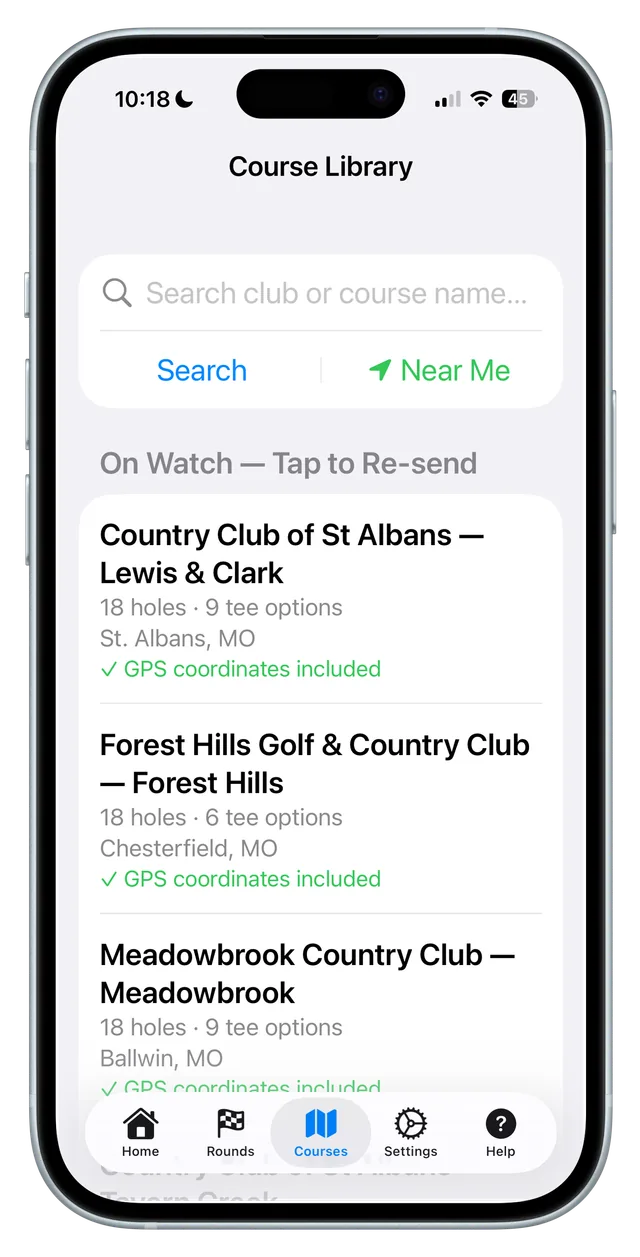
DuffMate iPhone Course Library screen with search, Near Me, and saved courses
  1. Open DuffMate on your iPhone.
  2. Tap the Courses tab at the bottom.
  3. Search for your course by name — or tap Near Me to find courses around you.
  4. Tap your course, then Send to Watch.
  5. Wait for the Watch to confirm. You're set.

🔑 Tip: You only need to do this once per course — DuffMate remembers it for next time.

Step 2 — Start Your Round

On your Apple Watch at the first tee.

Apple Watch

Once your course is loaded, starting a round is just a couple of taps.

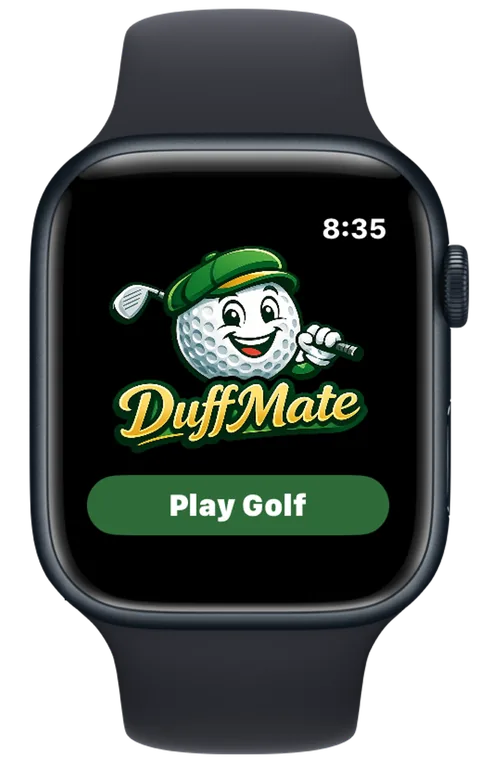
DuffMate Apple Watch start screen with the logo and a Play Golf button
Tap Play Golf
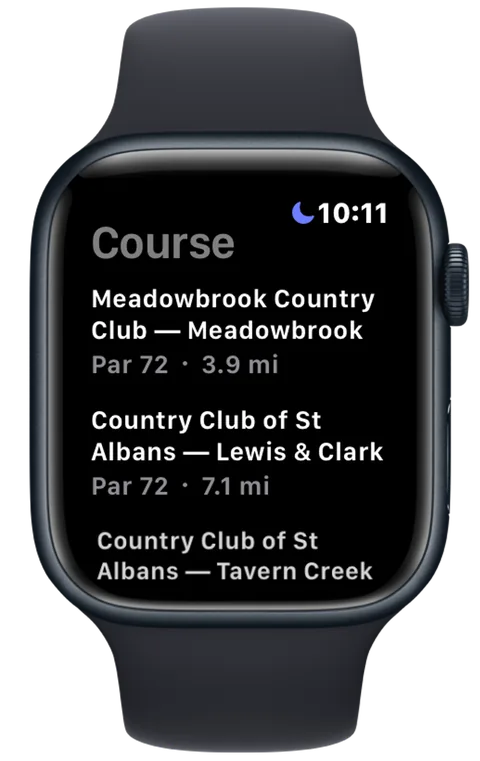
DuffMate Apple Watch course selection list
Pick your course
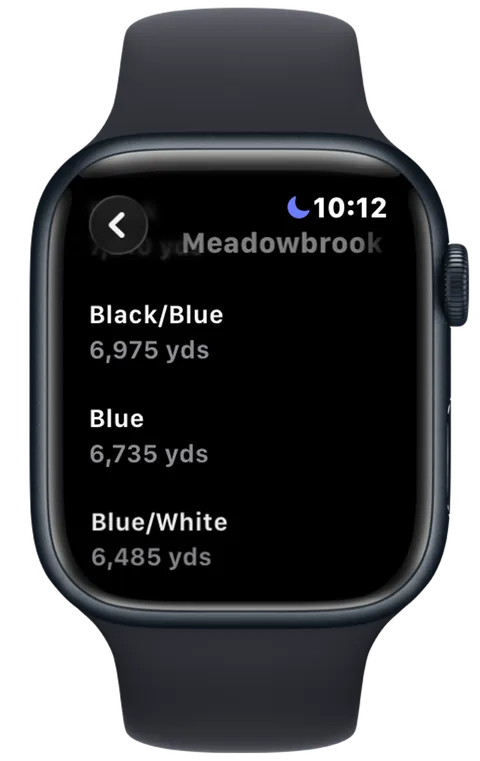
DuffMate Apple Watch tee selection showing tee names and total yardage
Choose your tee
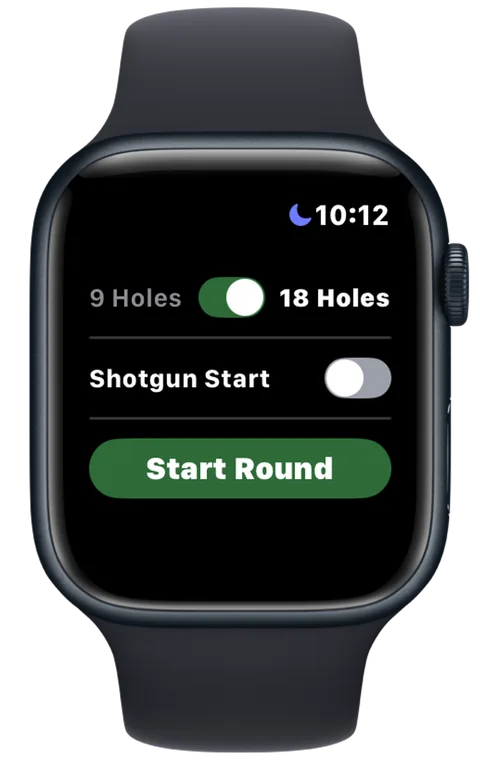
DuffMate Apple Watch round setup with 9 or 18 holes and a shotgun start toggle
9 or 18, then start
  1. Open DuffMate on your Watch and tap Play Golf.
  2. Pick your course from the list (closest courses sort to the top).
  3. Choose your tee — it's noted in your round summary.
  4. Choose 9 or 18 holes. Starting on a different hole? Turn on Shotgun Start and pick your hole.
  5. Tap Start Round.

Step 3 — Shot Detection

How DuffMate knows you swung.

Apple Watch

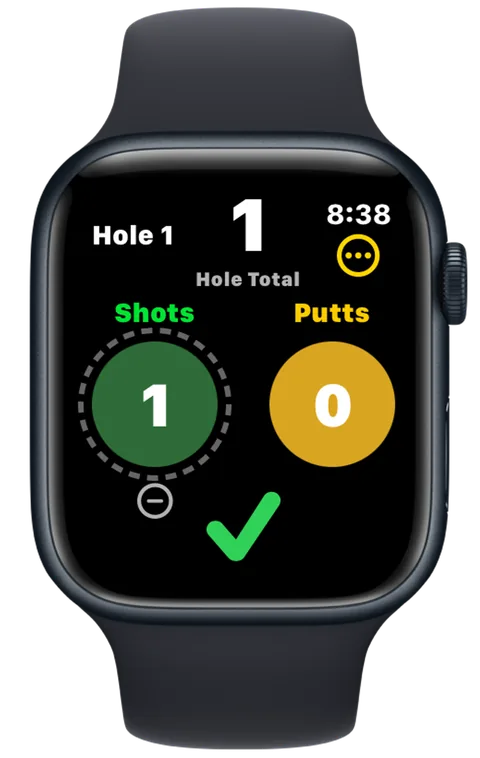
DuffMate watches your Watch's motion sensors during your round. When it detects a swing, it counts the shot automatically.

DuffMate Apple Watch main screen with the hole total and the shots and putts dials
After the shot
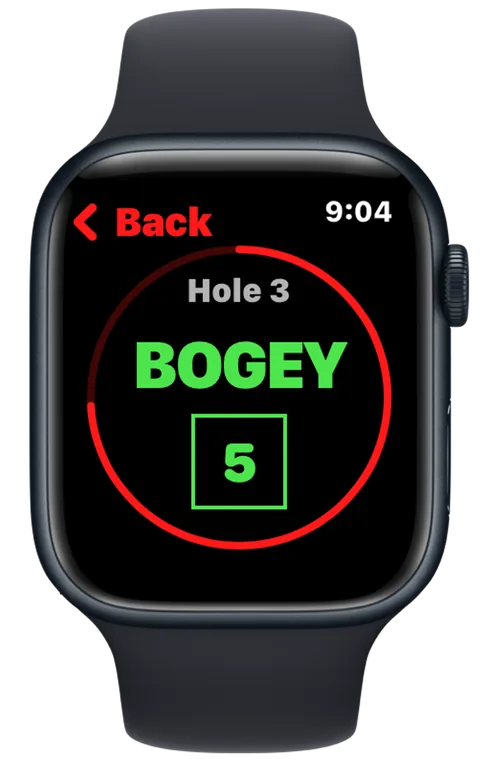
DuffMate Apple Watch hole-complete screen showing a bogey score of 5
Hole total confirmation

✅ After a swing is detected, the counter runs a short countdown to rule out a practice swing, then ticks up. You'll hear a ping and feel a buzz — no tap needed.

Missed a shot or counted an extra?

Tap the shot circle to add a shot; tap the minus button to subtract. Add a penalty stroke the same way.

What about putts?

Putts aren't auto-detected — tap the plus button for each one on the green. They're tracked separately so your shot stats stay clean.

Done with the hole?

Tap the green check mark and a confirmation screen appears. Tap Back before the countdown ends if you need to adjust.

Need to change a hole or end the round?

Tap the ••• button.

Step 4 — Distance & Wind

Know your number before you swing.

Apple Watch

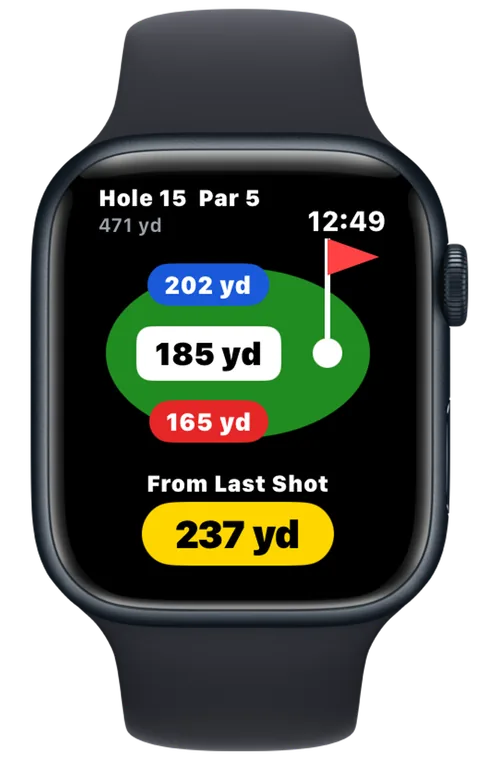
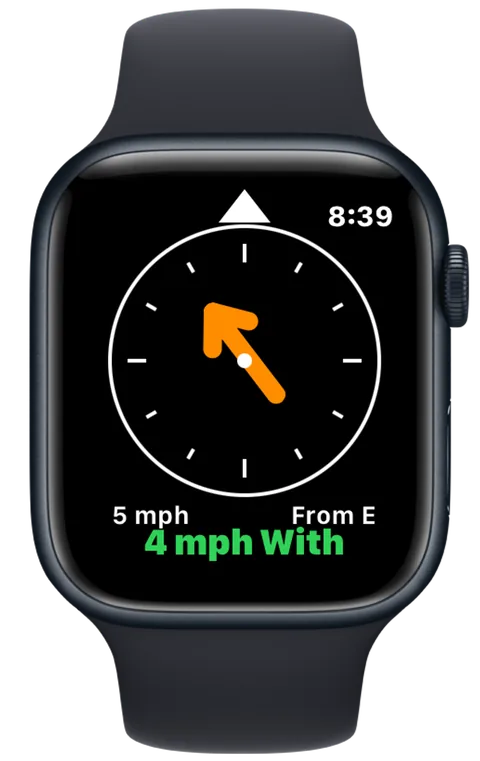
Swipe left from the main screen for distance, and again for the wind.

DuffMate Apple Watch distance screen showing yardage to the front, center, and back of the green
Distance to the green
DuffMate Apple Watch wind screen with a compass arrow, wind speed, and whether it helps or hurts
Live wind
  • Distance: yardage to the front, middle, and back of the green, plus how far you've come from your last shot.
  • Wind: a compass arrow shows the direction it's blowing, with the speed and whether it's helping or hurting on this hole.

🔑 Tip: GPS distances are good to within a few yards — close enough to pick a club. Give the Watch a few seconds on the first tee to lock onto GPS.

Step 5 — After Your Round

Syncing to iPhone and reviewing your stats.

iPhone App

Tap End Round on your Watch, then open the DuffMate app on your iPhone — your round syncs automatically over Bluetooth.

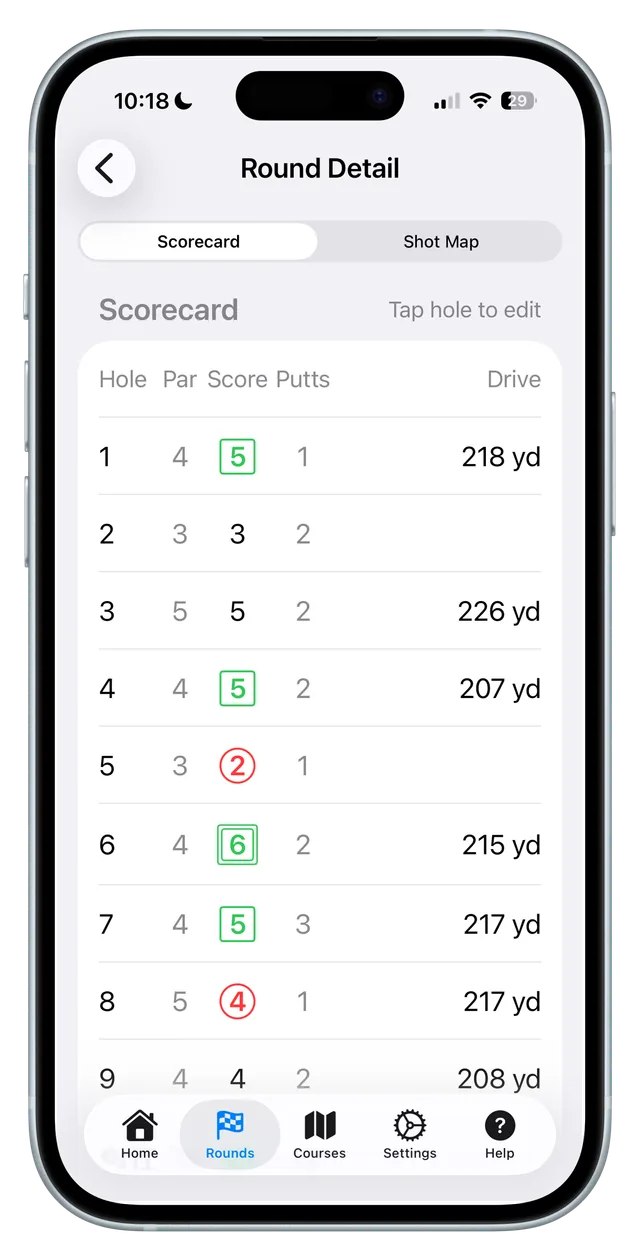
DuffMate iPhone scorecard showing par, score, putts, and drive distance for each hole
Scorecard
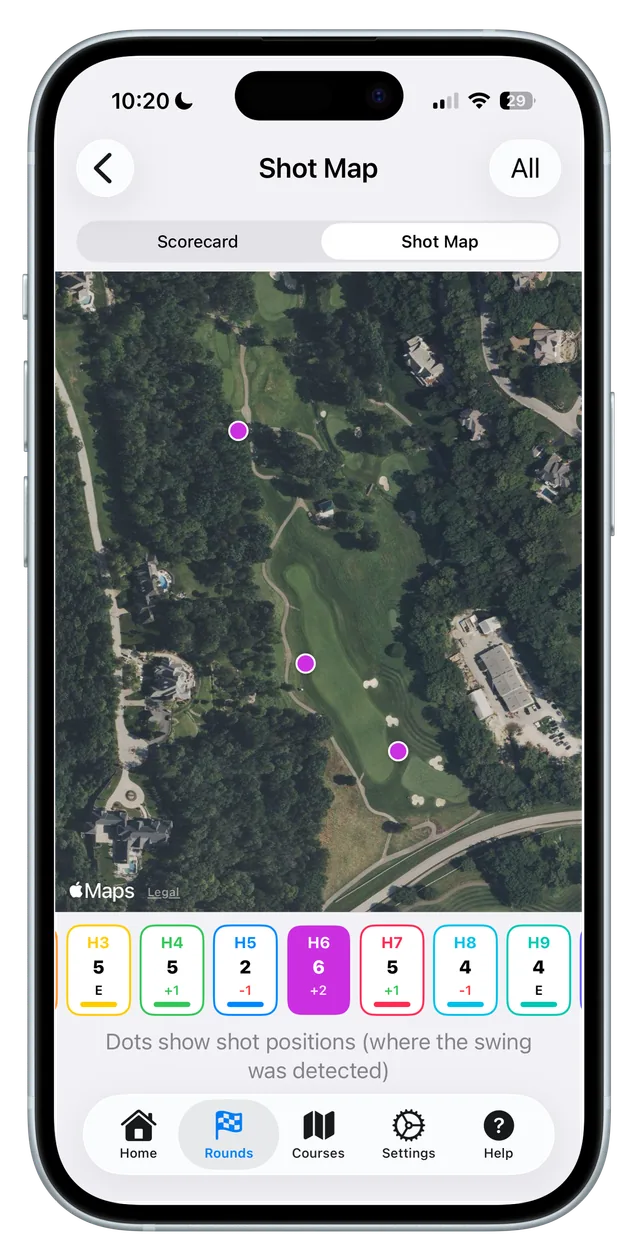
DuffMate iPhone shot map showing colored dots for each detected shot on a satellite view
Shot map
  • A full scorecard, with drive distances on par 4s and 5s.
  • A satellite shot map of where you played each shot.
  • Your stats over time — round history, personal bests, and trends.

🔑 Tip: To fix anything, tap the round, then tap any hole to adjust shots or putts.

FAQ

Frequently asked questions

How does DuffMate count my shots?

DuffMate uses your Apple Watch's motion sensors to recognize the motion of a golf swing and counts the shot automatically — no tapping during play. After each swing it waits briefly to rule out a practice swing, then logs the shot and where you were standing. If it ever misses one or counts an extra, a quick tap fixes it.

Does DuffMate work without my iPhone nearby?

Yes. Your Watch records the whole round on its own using its built-in GPS, so you can leave your iPhone in the cart or clubhouse. When you open the DuffMate app on your iPhone afterward, the round syncs over Bluetooth and your scorecard, shot map, and stats appear.

What Apple Watch and iPhone do I need?

DuffMate runs on an Apple Watch with watchOS 11 or later, paired with an iPhone on iOS 18 or later for course setup and reviewing rounds. You don't need any extra sensors, clubs, or hardware.

Why did it count an extra shot?

Practice swings, aggressive arm movements, or a bumpy cart ride can sometimes look like a real swing. If DuffMate logs an extra, tap the minus button to remove it. DuffMate is designed to wait out practice swings, and you can adjust your practice-to-shot timing in Settings on the iPhone.

How accurate are the distances?

GPS distances are typically within a few yards outdoors with a clear signal — close enough to pick a club. Accuracy can dip near trees or buildings. On the first tee, give the Watch a few seconds to lock onto GPS before your first shot for the best reading.

Does DuffMate track my putts automatically?

No — putts are logged with a tap, on purpose. Tap the plus button for each putt while you're on the green. Putts are counted separately from your swings, so your shot stats stay clean. If you'd rather not track putts at all, you can turn them off in Settings on the iPhone.

Can I fix my score after the round?

Yes. Open the DuffMate app on your iPhone, tap the round you want to change, then tap any hole to adjust the shots or putts. Your scorecard and stats update automatically.

What happens if my Watch battery dies mid-round?

DuffMate saves your round after each hole, so you'd only lose the current hole's shots if the Watch dies. When you charge it and reopen the app, your saved round is still there and will sync to your iPhone.

Does DuffMate use a lot of battery?

DuffMate runs a golf workout session to stay active during your round, which uses more battery than the watch face alone — plan on a full charge before a round. Most Apple Watches handle 18 holes comfortably from a full charge.

Is my data private?

Yes. Your rounds stay on your iPhone and Watch — there are no accounts and nothing is sold or used for advertising. DuffMate only sends your location to look up the weather and to find your course. See the Privacy Policy for the full details.

How much does DuffMate cost?

DuffMate is a one-time purchase of $5.99 on the App Store — buy it once, with no subscription and no recurring charges.

How do I contact support?

Email [email protected] with your question or bug report. If you're reporting a problem with shot detection or distances, it helps to include your Apple Watch model, your course, and roughly when it happened.

Still need help?

Email [email protected] and we'll get back to you. DuffMate is a small, independent app, so your note reaches the person who actually builds it. For shot-detection or distance issues, include your Watch model, the course, and when it happened — it makes problems much easier to track down.